

In this post, we see how to add custom actions to the list view in the Salesforce lightning framework.
Create a button from the setup
Login to Salesforce
Click the Gear icon and navigate to setup
Go to Object Manager
As part of this article, we are adding a new button to the list view of the case object.
Search for Case object and drill down on it, expect the below-mentioned screen

Find submenu and click on Buttons, Links, and Actions and click the New Action button

Add the details as mentioned below
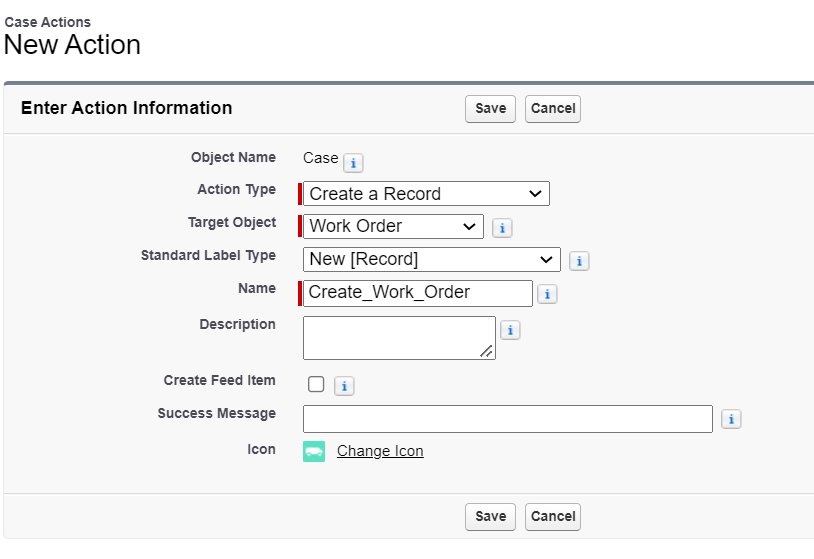
We have selected Work Order as a Target Object
Click Save button
Add required fields to the layout and click the Save button.

Add button to the layout
In the same screen, go to submenu > click on the Search Layouts for Salesforce Classic > Click Edit option for List view
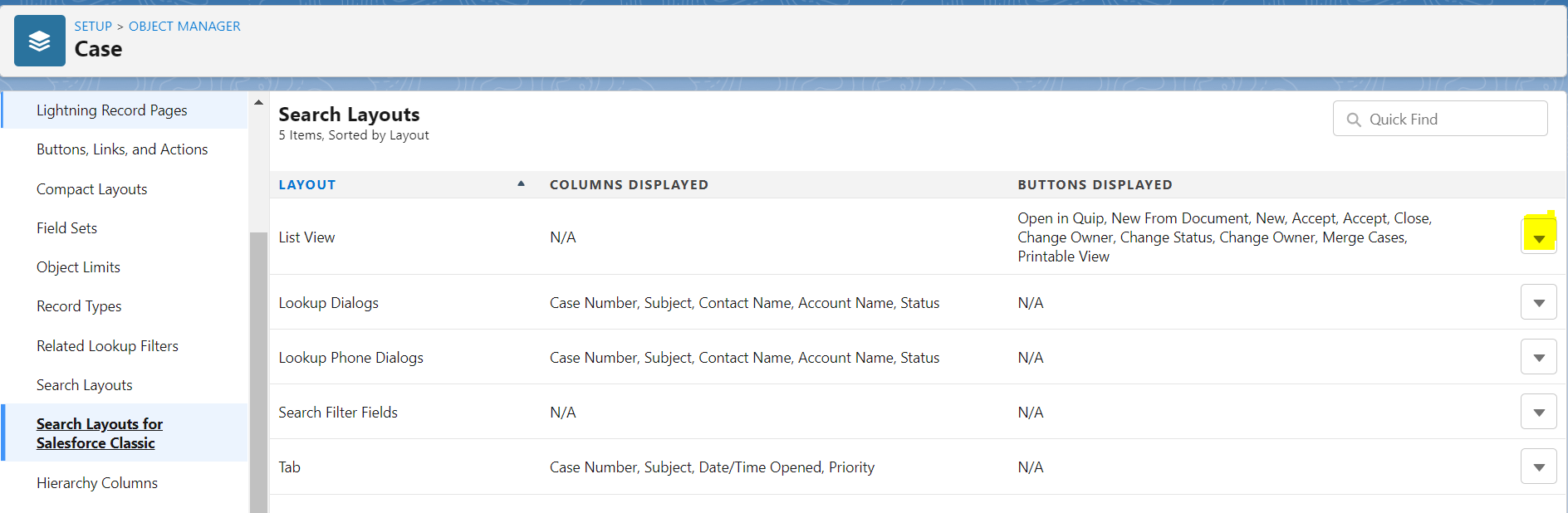
Add newly created button to the Selected Quick Actions column and Click Save button
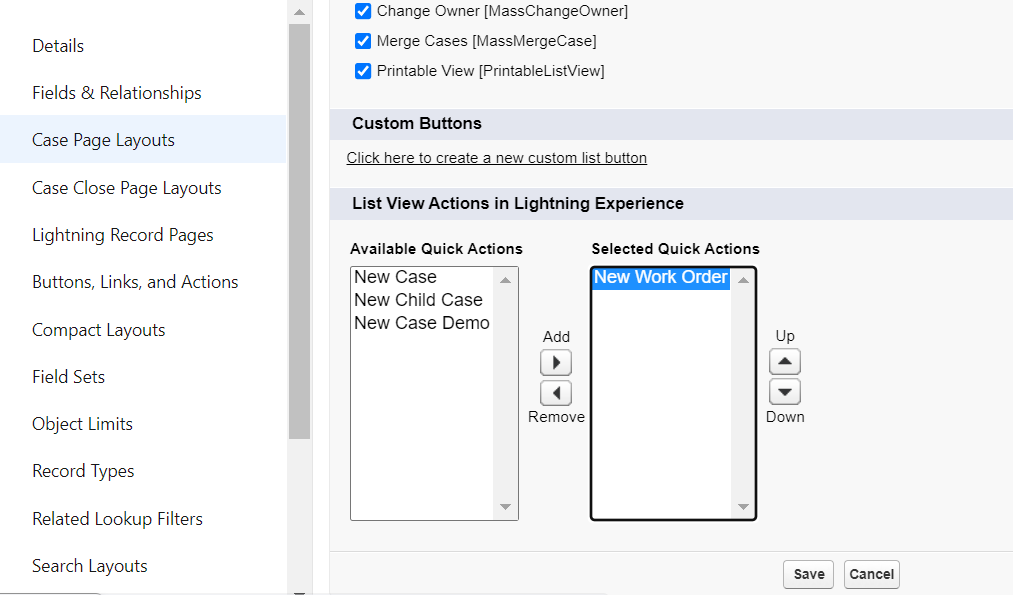
Please note search layouts are split between the Search layouts and Search layouts for Salesforce classic. Add your Action to the Search layouts for Salesforce classic.
Well, we are done with the configurations. Verify the same in the layout.
Result

When you click the newly created button, it says to select at least one record, because Work order is a child entity for the Case and hence we must always select the parent record before creating a new record from the Create a Record Action button in the list views.
Have a look at the Quick Action Considerations to understand more.
In case you are looking for something different, mention it in the comments section. Our team is glad to support your Salesforce implementations and troubleshooting.
how to create flow in salesforce lightning
how to create a button in a lightning component
Last updated on: 20 Mar 2022


9 Comments
This solution doesn't appear to work any more. Search layouts are now split between Lightning and List views only appears on for CLASSIC now (and don't allow quick actions).
ReplyDeleteYes, Search Layouts are now split between "Search Layouts" and "Search Layouts for Salesforce Classic".
DeleteBUT!
These instructions still work -- you just have to add the action to the Search Layout for Salesforce Classic.
Oh my LORD Unknown thank you for clarifying this re: the list view edit now appearing in the "Search Layouts for Salesforce Classic" section. I was just looking everywhere for this and knew that it couldn't be a VF button that needed to be created as many were saying for a simple 'New Record' action.
DeleteThanks for the solution , it definately works
ReplyDeleteThank you Gaurav.
DeleteUnfortunately now when following these exact instructions on Case, when you select the New Case button a red box appears with a 'Select at least one record' error.
ReplyDeleteIt will not offer you a modal screen with your layout to create your new record UNLESS you select a record from the displayed list (which it will then populate in the Parent Case field on your new record). Wondering if the solution is a new BUTTON instead of a new Action, and if so then what we do with the Content Source field if we have no dev experience.
Thanks for the feedback. Updated instructions for the latest changes from the Salesforce.
DeleteHi, I was able to create a new action but its not showing up in available quick action menu to select ? Any idea what can be the reason.
ReplyDeleteRecently Salesforce has modified some functionalities around List View Actions... I have updated the instructions above. Kindly check and let me know if you face any issues. Thanks.
Delete