

In this blog post, let us discuss a workaround to remove the New button from the recently viewed list view in salesforce lightning. With summer '21 release updates, there is a configurable option in the salesforce setup > object settings, check the detailed steps at the end.
To implement the workaround, please follow the below steps.
Thanks
to the lightning experience override feature which gives an option to map the
lightning component. With this, we can restrict the New record creation by
alerting a message in the popup when the user clicks on the New button.
It is a
simple two-step process where you will create a new lightning component and map
the component to the new button in the object manager. Detailed steps are
mentioned below.
Step 1
Create
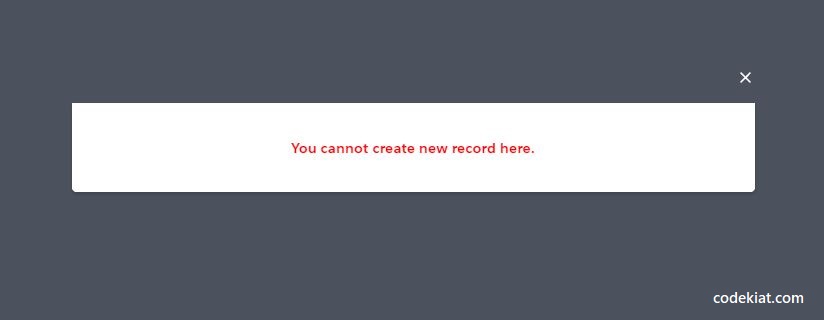
a lightning component that shows popup message to the user as below
.cmp code (component)
<aura:component implements="lightning:actionOverride,flexipage:availableForAllPageTypes" access="global">
<section role="dialog" tabindex="-1" aria-labelledby="modal-heading-01" aria-modal="true" aria-describedby="modal-content-id-1" class="slds-modal slds-fade-in-open">
<div class="slds-modal__container">
<header style="position:relative">
<lightning:buttonIcon iconName="utility:close"
onclick="{! C.closeModel }"
alternativeText="close"
variant="bare-inverse"
class="slds-modal__close"/>
</header>
<div class="slds-modal__content slds-p-around_medium">
<div class="slds-p-around_medium slds-p-left_large">
<div class="slds-align_absolute-center" style="color:red">
<h2><b>You cannot create new record here.</b></h2>
</div>
</div>
</div>
</div>
</section>
<div class="slds-backdrop slds-backdrop_open"></div>
</aura:component>
.js code (client-side controller)
({
closeModel: function(component, event,
helper) {
var navEvent =
$A.get("e.force:navigateToList");
navEvent.setParams({
"listViewName": null,
"scope":
"Options__c"
});
navEvent.fire();
},
})
This Aura component shows a popup as soon as it is loaded. Click the X button to navigate back to the pinned list view.
Step
2
Map
the component to New button in the Object manager

Click on the setup from the Gear icon at the top right corner of your salesforce instance > go to the object manager
Search
with the object where you want to implement this logic > Navigate to Object
Go to
Buttons, Links, and Actions menu item
Click on
Edit option for the New button
In the
Lightning Experience Override option select the lightning component which is
created in the first step and save the details
In this configuration, we have mapped the lightning component to the New button. With a click of the button in the list view, the lightning component is initialized. As we have a modal popup defined in the component, the user will see the popup and on click of the X button, the context goes back to the pinned list view.
Note: In
case record types are enabled for the object, users will see the record type
selection popup when they click the New button. Selecting any record type and on
click of the Next button will take you to the customized popup.
Hope
this helps you to restrict the user from creating the new record from the recently
viewed list view in your org. In case you have tried or came across any
other workaround please share it in the comments section.
Updated
With Summer '21 release, we have an option to remove the button from the recently viewed list view directly through the configuration
Go to object manager > Object > Search Layouts for Salesforce Classic > List View > Click Edit > Uncheck the New option > Save
Happy learning!


6 Comments
This worked great, thanks! The only thing I had to change was to swap "Options__c" for "Opportunity"
ReplyDeleteFor non-coders, go to the Developer Console, select File | New | Lightning Component.
Enter a component name with no spaces or special characters.
Check Lightning Record Page and then click Submit.
Copy and paste the the first part of the code above.
In the side panel, select controller and paste the second part.
File> Save. Then proceed with the instructions to override the new button.
I'm glad it worked. Thanks for adding the detailed instructions. I will try to add detailed steps in my next articles.
DeleteI am getting below error, after getting the pop up.
ReplyDeleteYou don't have access to this record. Ask your administrator for help or to request access.
Hi Nisha, I think it shouldn't create new record from the above followed approach. Could you please check it is executing component javascript code by adding alerts [ex: alert("test");] in between the code.
DeleteThanks so much for this super helpful post! I was able to get it to work very easily. One question, if we have different record types for Opportunities and we only want to stop folks from being able to create one record type opp, is there a way to do that? Thanks again!
ReplyDeleteThanks for the feedback. we can use any of the below mentioned methods
Delete1. Using configuration you can remove access to the record type in the profile level so that user will not be able to create an opportunity with that record type.
2. Create validation rule or
3. Custom implementation with trigger